Repeat Timer
 Download
How to set an hourly alarm on iPhone
The Clock app on iPhone can repeat an alarm on certain days, but not every hour, every 30 minutes or every 15 minutes. Here are the ways around it, from the built-in workaround to a single recurring alarm.
Option 1: One Clock alarm for each hour
This works without installing anything, but you have to create every alarm yourself.
- Open the Clock app and tap Alarms.
- Tap +, set the first time (for example 9:00 AM) and choose the days under Repeat.
- Tap Save, then repeat for 10:00, 11:00 and every other hour you need.
For a working day from 9 to 5 that’s nine alarms, and twice as many for every 30 minutes. Turning them all off for a day off means switching each one off by hand.
Option 2: An hourly chime on Apple Watch
If you wear an Apple Watch, it can play a short chime at the top of every hour. On the watch, open Settings, go to Clock, and turn on Chimes. It’s a gentle tap and sound rather than an alarm, it only plays on the hour, and the iPhone itself has no equivalent.
Option 3: One recurring alarm with Repeat Timer
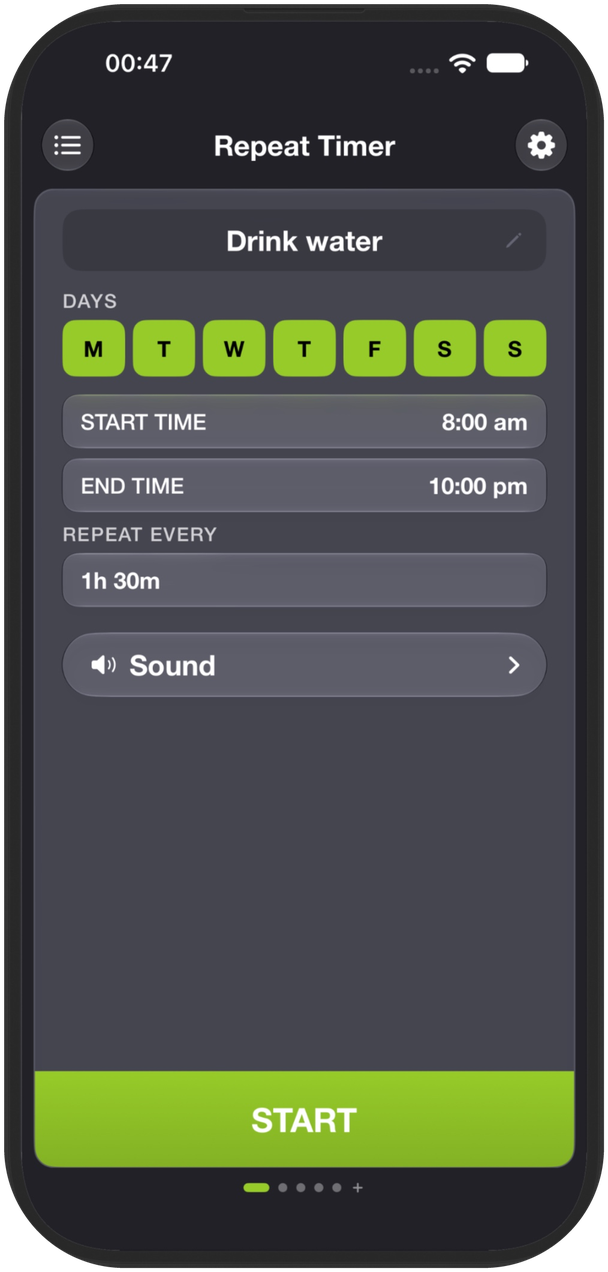
Repeat Timer has interval alarms: one alarm that goes off every hour (or every 15 or 30 minutes, or any interval you choose) between a start and an end time, on the days you pick.
- Open Repeat Timer and switch to Alarm.
- Choose Interval and select the days, for example Monday to Friday.
- Set the start time and end time, such as 9:00 am to 5:00 pm.
- Under Repeat every, choose 1h, then pick a sound and tap Start.
These are real iPhone alarms built on Apple’s AlarmKit, so they ring like the Clock app’s alarms, even when Repeat Timer is closed. Away for the weekend? You can skip all your alarms until a date, and they start again on their own.
Alarm every 30 minutes or every 15 minutes
Use the same steps and set Repeat every to 30m or 15m. Every 30 minutes from 8am to 8pm is a popular setting for drinking water. Every 15 minutes works well for posture checks or short tasks.
Alarms at specific times instead
If your reminders aren’t evenly spaced, for example medication at 8am, 1pm and 8pm, choose Times instead of Interval and add each time of day. It’s still one alarm to manage.
Only need it for a while?
If you’re at a computer, the free online repeat timer can sound every hour (set the interval to 60 minutes and the repeats to 0) for as long as the browser tab stays open.
Frequently asked questions
Can the iPhone Clock app repeat an alarm every hour?
No. In the Clock app, Repeat only chooses the days of the week. For hourly alarms you need one alarm per hour, or an app with interval alarms.
Can I use Shortcuts to set an hourly alarm?
A time-of-day automation in the Shortcuts app runs at one time, so an hourly schedule needs one automation for each hour, just like separate Clock alarms.
Is there an hourly chime for iPhone?
Not built in. Apple Watch has an hourly chime under Settings › Clock › Chimes. On iPhone, a recurring 1-hour alarm in an app like Repeat Timer does the same job, with any sound you like.